
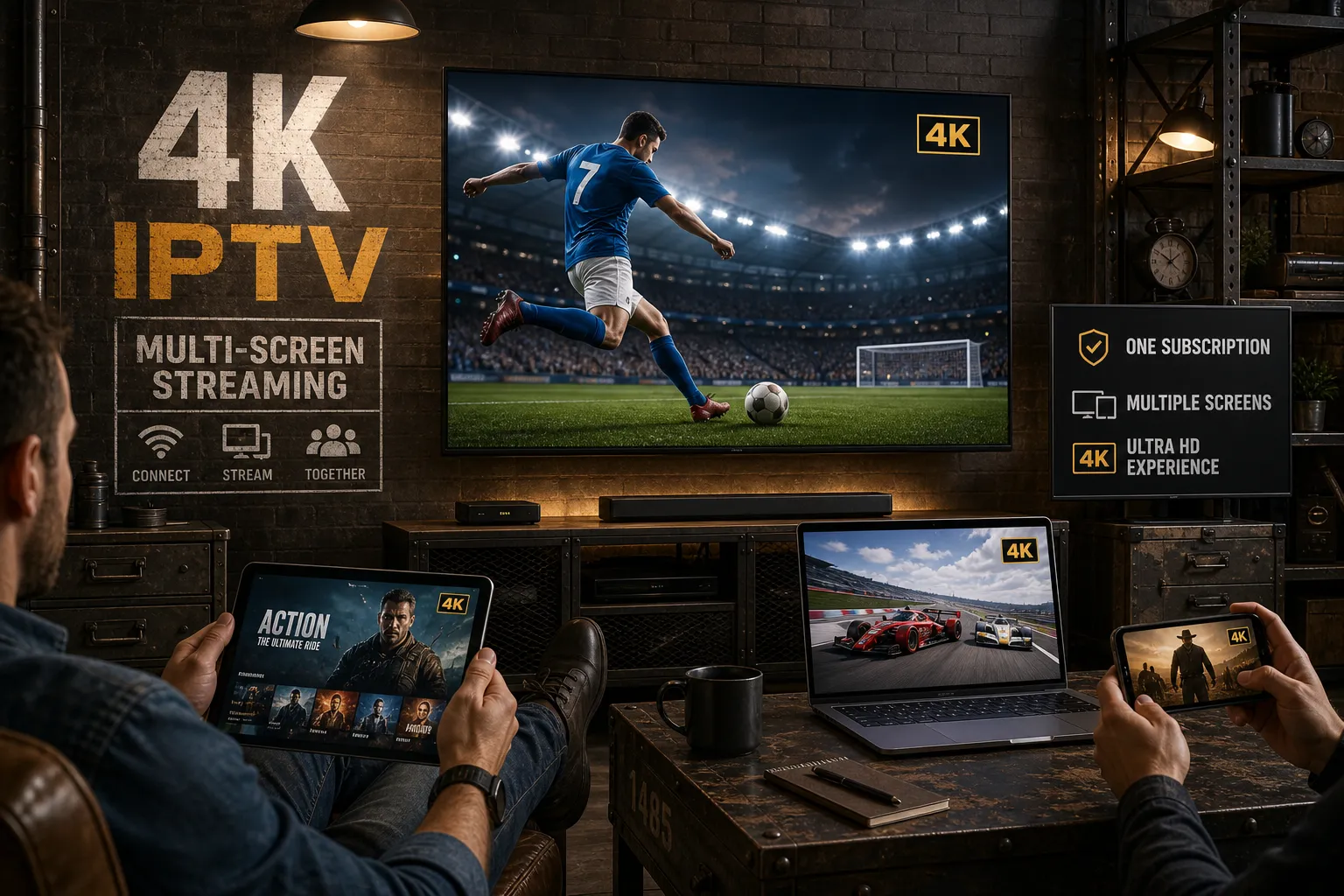
Getting one 4K IPTV stream working is the easy part. You plug in a Fire TV Stick, enter your playlist URL, and suddenly you’re watching crystal-clear content on a single TV. Then someone else in the house wants to watch a different channel on a different screen, and everything falls apart. Buffering starts on both screens, quality drops to 720p, and the setup that felt seamless five minutes ago becomes a frustrating mess.
Setting up IPTV 4K multi screen across an entire household is absolutely achievable, but it requires bandwidth, the right apps, and a provider plan built for simultaneous connections to all be working together. Drogon TV is designed for exactly this use case, offering multi-screen 4K support across every major device from a single subscription. But before you can make a smart provider choice, you need to understand the technical foundation underneath it.
How much bandwidth you need for IPTV 4K multi screen
Most people assume their internet connection is fast enough because a single 4K stream “works.” The problem shows up when you add a second or third screen. Each stream has its own bandwidth demand, and those demands stack directly on top of each other.
The per-stream baseline and why 25 Mbps falls short
Twenty-five Mbps is the theoretical minimum for a single 4K stream using H.265/HEVC compression, but real-world conditions push that number higher. During live sports, fast-motion content temporarily spikes to 30, 35 Mbps per stream. A connection sitting right at the minimum will buffer every time the action picks up. For reliable 4K playback on a single screen, plan for 40, 50 Mbps to account for motion spikes and background network activity.
Calculating total bandwidth for 2, 3, 4, and 5 screens
The math is straightforward once you know the per-stream number. Using 50 Mbps as your reliable per-stream baseline, two screens need roughly 100 Mbps total, three screens push to 150 Mbps, and a full five-screen household should target 250 Mbps or higher as a starting point. From there, apply a 50% headroom buffer on top, so a five-screen household should realistically target closer to 375 Mbps, to cover network fluctuations, background software updates, and other connected devices sharing the same router.
Why codec choice changes everything
Legacy H.264 encoding requires 50, 80 Mbps per 4K stream, which makes multi-screen setups nearly impossible on standard residential connections. H.265/HEVC delivers the same visual quality at roughly half the bitrate, dropping per-stream requirements to 25, 40 Mbps and making multi-screen 4K practical on a 200, 250 Mbps internet plan. Before committing to any provider, confirm they use H.265 encoding on their 4K channels, that single detail determines whether the whole setup succeeds or fails.
Device compatibility and what each can actually handle
Hardware matters, but not in the way most people think. The confusion usually comes from conflating two separate concepts: running multiple streams from one device versus running one stream per device across multiple TVs.
One device per TV: the rule most people skip
A single Fire TV Stick, Apple TV, or Android box cannot split output to multiple televisions. Each screen in your home needs its own dedicated device. This is one of the most common setup mistakes, and it causes failures before anyone even opens a streaming app. If you have three TVs, you need three streaming devices connected to three separate televisions.
Fire TV Stick 4K, Apple TV 4K, and Android TV boxes compared
Within a single screen, multi-view apps allow you to display multiple channels simultaneously in a grid layout, what’s sometimes called quad view IPTV or 4K IPTV multiview. The Fire TV Stick 4K handles roughly three to four concurrent streams in multi-view before performance degrades. High-end Android TV boxes like the NVIDIA Shield can handle up to eight concurrent streams in the same configuration. Apple TV 4K generally has higher processing capability than the Fire TV Stick 4K and may handle four or more streams depending on the app, though performance varies by configuration. Device choice matters significantly when you want to run a four-channel sports grid on a single panel.
What actually limits your simultaneous connections
Here’s what most setup guides skip: the real ceiling in multi-screen IPTV is the provider’s account policy, not the hardware. A provider that caps accounts at one or two connections will block additional streams regardless of how powerful your devices are or how fast your internet runs. This is why provider selection is as important as hardware selection when building a multi-screen setup.
The best apps for IPTV 4K multi screen viewing
Platform matters here. The app ecosystem for multi-view IPTV is fragmented, and no single app works natively across all devices. Picking the right one depends on what devices are already in your household.
TiviMate Premium for Android and Fire TV users
TiviMate is the go-to choice for Android TV and Fire TV multi-view. It supports a 2×2 four-channel grid, works with M3U and Xtream Codes playlists, and is available from the Amazon App Store on compatible Fire TV devices, though some models may require sideloading. The free version locks out multi-view entirely; Premium is required to access the feature. If your household runs on Fire TV Sticks or Android boxes, TiviMate Premium is the starting point for any IPTV multi-room or multi-screen configuration.
IPTVX and iProTV for Apple TV and iOS households
Apple TV and iOS users have two strong options that serve the same ecosystem. IPTVX supports up to four simultaneous streams with iCloud sync across devices, making it easy to carry your channel setup from Apple TV to iPhone without reconfiguring. iProTV offers persistent multi-view groups that carry over between sessions, so you don’t have to rebuild your sports grid every time you open the app. Neither works on Fire TV or Android, so device choice at the hardware level determines which app category applies to your setup.
RunTV for cross-platform and sports-focused households
RunTV is a strong cross-platform option when your household mixes Android TV boxes, Fire TV Sticks, and mobile devices. It supports 2x, 3x, and 4x screen layouts and was built specifically around live sports viewing. It requires sideloading on Fire TV rather than installing from the Amazon App Store, but it’s a reliable choice when different viewers in the house use different types of devices.
Configuring iptv 4k multi screen in TiviMate step by step
TiviMate gives you three different ways to enter multi-view mode, and understanding all three helps you get into it quickly regardless of where you are in the app.
Enabling multiview and loading your first channels
From the channel list, long-press the OK button on any channel and select “Add to Multi-Screen.” From the EPG guide, long-press a program entry and choose the same option. During live playback, press OK to open the playback menu, navigate to the Quick Menu, and select Multi-Screen. Each method adds the selected channel as one panel in the grid. Repeat the process for up to four channels total to fill a 2×2 layout.
If the Multi-Screen option doesn’t appear in your menus, go to Settings, then Appearance, then Player, then Menu, and toggle Multi-View on manually. This is a common issue after fresh installs.
Managing your screens once multiview is active
Once you’re inside the multi-view grid, press OK on any panel to bring up options for that specific screen. You can enlarge one panel to focus on a primary game while keeping others smaller, swap the channel playing in a panel, or remove a screen entirely. For audio sync issues that frequently appear in multi-screen mode, open the playback menu and adjust the Audio Offset slider by 200, 400ms in either direction until the audio matches the video. If the issue persists across channels, set a default audio delay under Settings and Player to apply the correction globally.
What a real multi-screen 4K IPTV plan should include
Not all IPTV plans are built the same. A plan that looks similar on paper can perform completely differently under the load of multiple simultaneous 4K streams. Knowing what to look for separates a setup that works from one that collapses the moment a second screen joins.
Simultaneous connection limits and why they differ by plan
Most IPTV providers tier their plans by the number of allowed concurrent connections. A single-connection plan works for solo viewing but breaks immediately when a second household member tries to watch. When shopping for a multi-screen plan, look explicitly for three to five connection support and confirm that 4K streams are included at each connection level, not just standard definition on the additional connections. Some providers offer 4K only on the primary connection and downgrade additional connections to HD or lower.
Server infrastructure and uptime standards for multi-screen stability
A plan that handles multiple 4K streams reliably needs the infrastructure to back it up. Look for providers that offer enterprise-grade servers with geographic redundancy, a global CDN with edge caching for reduced latency, anti-freeze technology for live streams, and a documented uptime SLA. These are the markers that separate a plan built for sustained load from one that collapses on stream two or three even if the account technically allows the connection count.
Drogon TV as a concrete example of a multi-screen 4K plan
Drogon TV is built specifically for multi-screen households, with plans that support multiple simultaneous 4K UHD connections from a single subscription. The service runs across every major device, Firestick, Smart TV, Apple TV, Android, iPhone, and PC, so mixed-device households don’t have to compromise on the IPTV multi-room experience. Check the Drogon TV plan page for current pricing, connection tiers, and the latest details on their refund policy before signing up. A money-back guarantee period gives you enough time to run the full configuration across every screen before committing.
Fixing the most common problems with 4K multi-screen setups
Multi-screen 4K setups have a handful of consistent failure modes even when the plan and apps are correctly chosen. Most have straightforward fixes once you know where to look.
Buffering and freezing when multiple streams are running
The most frequent cause is insufficient bandwidth relative to the number of active streams. Revisit the per-stream math and confirm your connection speed matches the total demand. The second most common culprit is router bottlenecks from too many devices competing on the same Wi-Fi network. Switching TV-connected devices from Wi-Fi to wired Ethernet is the single highest-impact fix for multi-screen stability. If wiring is not possible, use the 5GHz band exclusively for streaming devices, enable QoS in your router settings to prioritize IPTV device traffic, and ensure IGMP Snooping is enabled for multicast stream handling.
Quality drops and out-of-sync audio across panels
In a four-panel multi-view layout, one stream may drop to HD while others hold 4K. This happens because the app prioritizes bandwidth allocation to the enlarged or active panel. Adjust individual panel quality settings in TiviMate by entering each panel’s settings separately.
For audio delay, one of the most common multi-screen complaints, the fix is the Audio Offset slider in TiviMate’s playback menu. If switching decoder modes between Hardware, Hardware+, and Software in Settings and Playback doesn’t resolve persistent sync issues, set the audio output on the device itself to PCM and disable Dolby Digital passthrough, which introduces latency on some streaming devices.
Putting it all together
Whether your iptv 4k multi screen setup involves two TVs or five, the same three variables determine whether it works reliably: connection speed, device capability, and your provider’s concurrent stream policy. A 250 Mbps connection means nothing if the provider caps the account at one concurrent stream. A five-connection plan means nothing if the devices can’t run a capable multi-view app. All three have to line up for the setup to perform at its ceiling.
The practical starting point is a provider built with multi-screen use in mind. Drogon TV covers the provider side with multi-screen 4K connection support, enterprise-grade server infrastructure, and flexible plan options. Pair it with TiviMate Premium on Fire TV or IPTVX on Apple TV, connect your primary streaming devices via Ethernet, and run the bandwidth math before adding a third or fourth screen. Visit the Drogon TV site directly to confirm current plan details and take advantage of any trial period to test the full iptv 4k multi screen configuration in your own home before making a longer commitment.